

Make a puzzle from your own photo | Photo Puzzle: Jigsaw, Sliding, Rotate & Swap
Screenshots show the original interface and may contain Korean text.
📸 Turn a special photo into a puzzle | Pixoas Photo Puzzle
Choose a favorite photo and turn it into your own puzzle game.
Pixoas Photo Puzzle is a free puzzle game that lets you play Jigsaw, Sliding, Rotate, and Swap with a single photo.
Pick a photo you would like to turn into a puzzle: a family snapshot, a picture with friends, a travel memory, or a favorite landscape. You can also start right away with the sample images.
Turn one photo into four different puzzles.
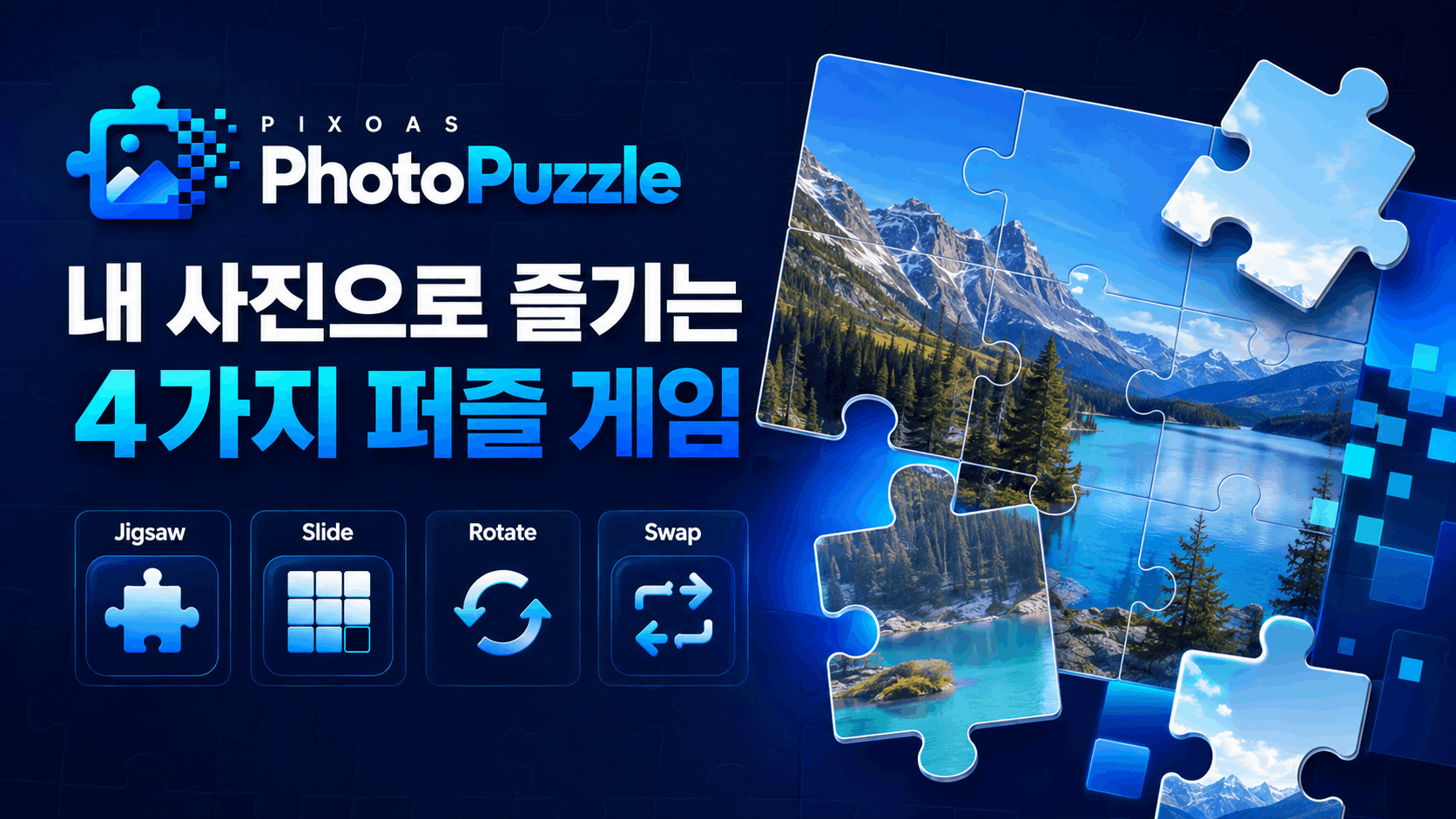
What if you could make a puzzle from a photo you took?
While solving a puzzle, I wondered, “What if I made a puzzle from one of my own photos?”
Turning photos from trips or time spent with family and friends into puzzles seemed like a new way to revisit pictures that otherwise just sit in an album.
I initially planned only a jigsaw puzzle. Then I thought it would be more fun to enjoy the same photo in different ways, so I added Sliding, Rotate, and Swap. I also refined the overall design and controls so the different puzzles would feel comfortable to use in one place.
I also wanted players to keep a record of what they had completed, rather than simply finishing and moving on.
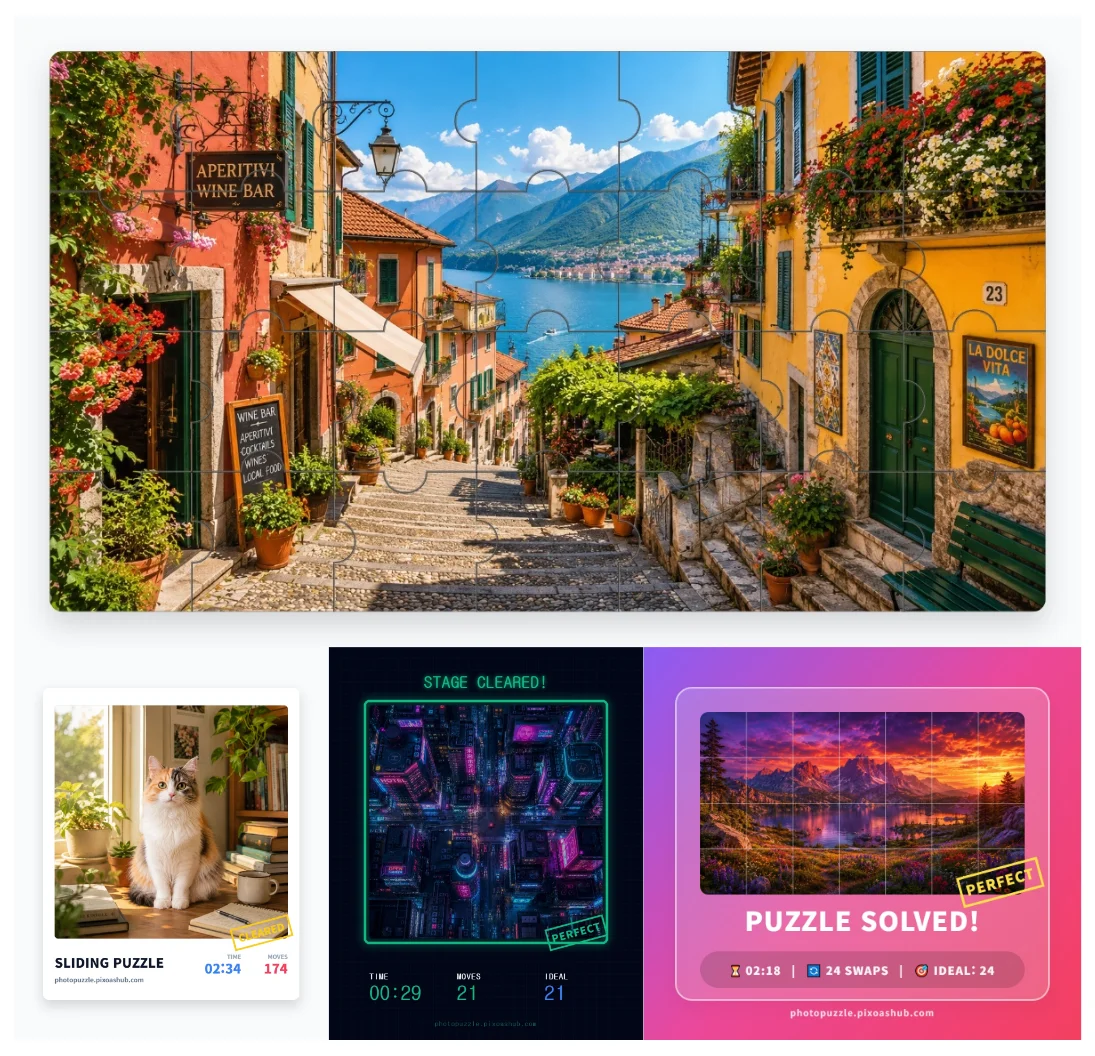
For Jigsaw, you can save the completed photo with its puzzle-piece shapes intact. Each of the four puzzles also has three scorecard designs. If you like your result, choose a design to save or share.
Here is a guide to each puzzle’s controls, difficulty levels, main features, and ways to save your results.
🎮 Four ways to play with one photo
Pixoas Photo Puzzle offers four puzzle games that let you solve the same photo in different ways.
Fit pieces together in Jigsaw, slide them into an empty space in Sliding, turn them the right way up in Rotate, or exchange their positions in Swap. Choose the style you enjoy.
| Puzzle | How to play | Aspect ratio | Pieces / grid |
|---|---|---|---|
| 🧩 Jigsaw | Fit the scattered pieces together | Original aspect ratio | Up to 500 pieces |
| ↔️ Sliding | Slide pieces into the empty space | Automatically cropped to 1:1 | Up to 6×6 |
| 🔄 Rotate | Rotate each piece to the correct orientation | Automatically cropped to 1:1 | Up to 8×8 |
| 🔀 Swap | Exchange the positions of two pieces | Original aspect ratio | Up to 100 pieces |
🧩 PUZZLE 01. Jigsaw
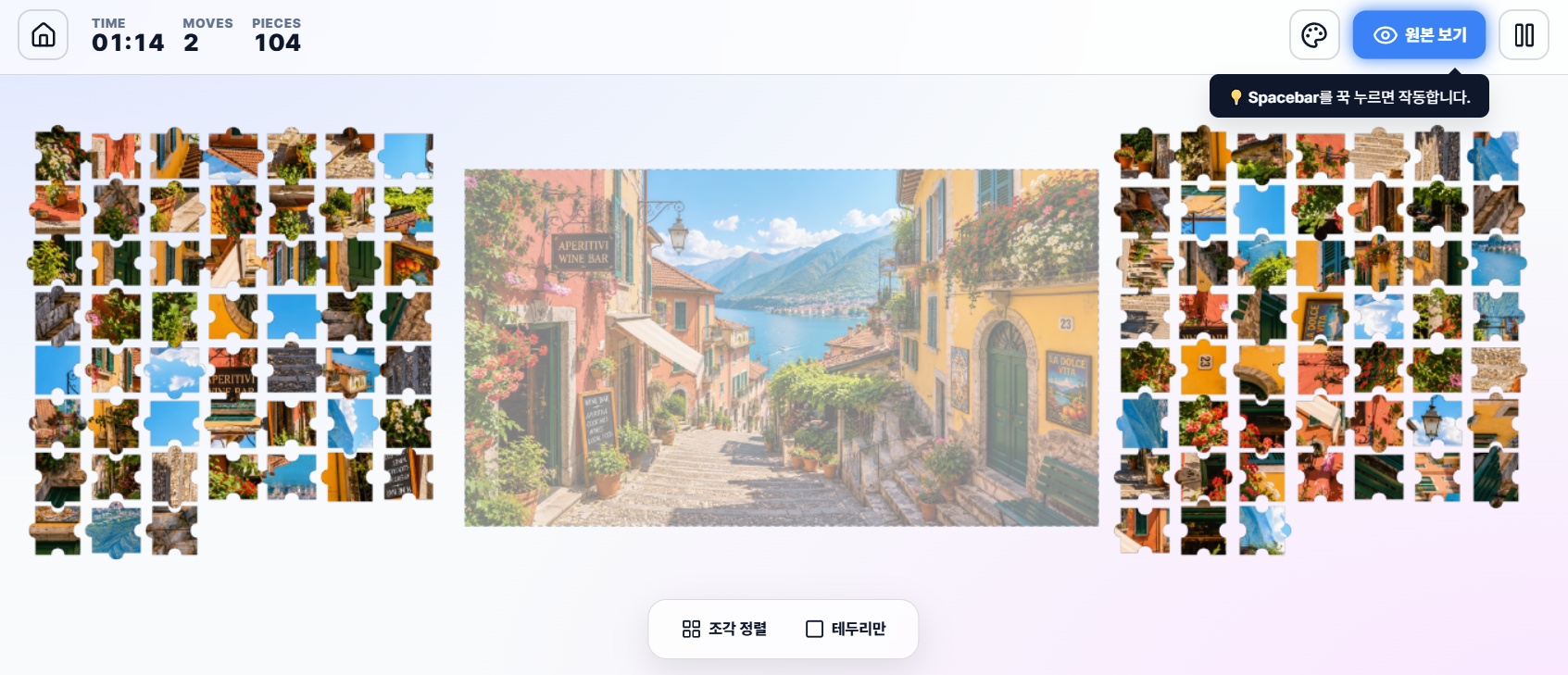
This is the familiar puzzle where a photo is divided into pieces and you put them back in place.
Drag pieces to move them; they snap together when placed correctly.
On a computer, you can also select and move a piece with a click.
Choosing a difficulty
Choose from 16 to 500 pieces. A rotation mode adds the challenge of getting each piece’s orientation right.
In rotation mode, right-click on a computer or double-tap on mobile to rotate a piece.
| Difficulty | Pieces / grid | Recommended for |
|---|---|---|
| 🟢 Beginner | 16–36 pieces | Your first game |
| 🔵 Classic | 64–100 pieces | The recommended starting point |
| 🔴 Hard | 144–256 pieces | A longer puzzle session |
| 🔥 Master | 400–500 pieces | The toughest challenge |
📱 For comfortable touch controls on mobile, 100 pieces or fewer is recommended.
Features that make playing easier
- Arrange pieces — Tidy up scattered pieces. Their positions are rearranged randomly.
- Edge filter — Show only edge pieces to build the border first.
- Preview — Check the original photo.
On a computer, hold the Space bar. On mobile, tap the preview control to toggle it on or off.
↔️ PUZZLE 02. Sliding
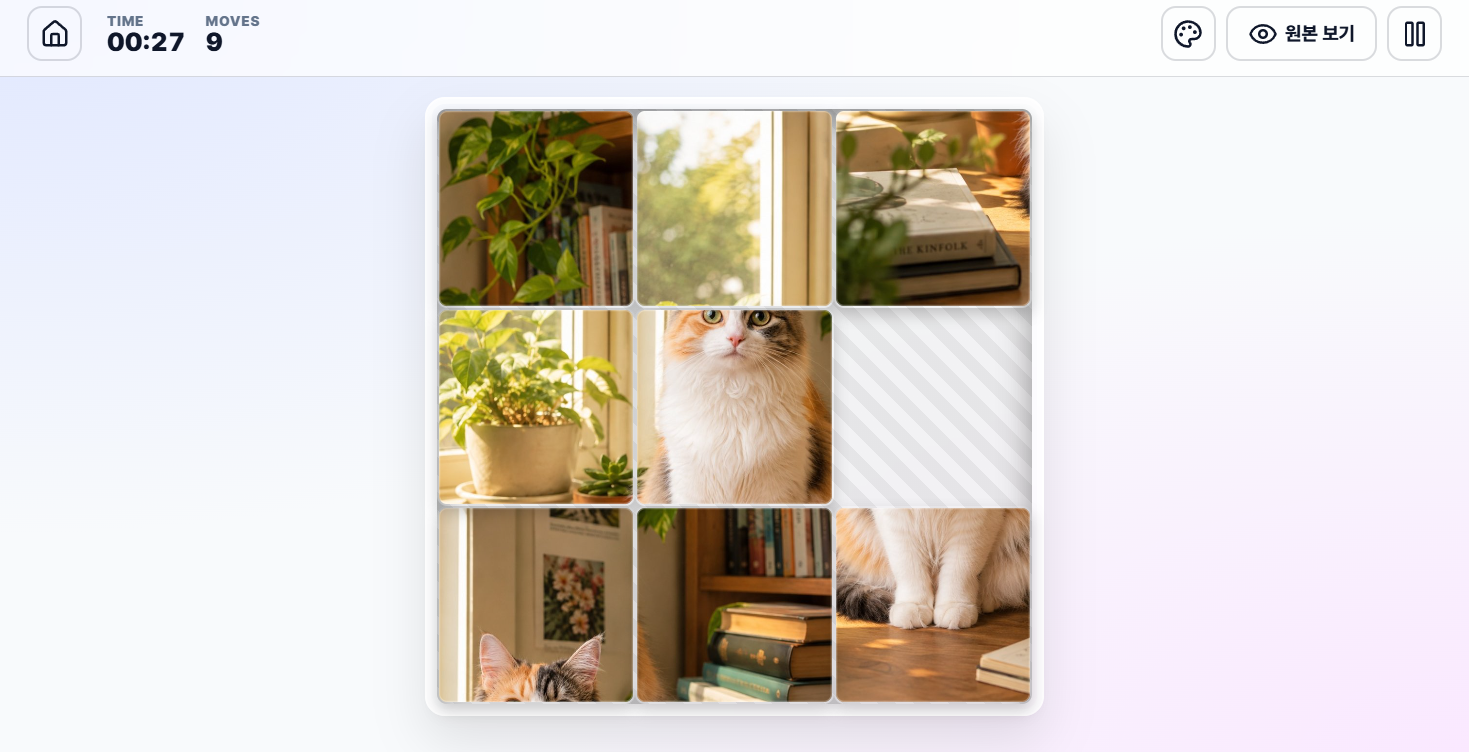
Slide pieces next to the single empty space to complete the photo.
You cannot move a piece directly to any position, so you need to plan the order of your moves.
Choosing a difficulty
Choose a grid from 3×3 to 6×6.
| Difficulty | Pieces / grid | Recommended for |
|---|---|---|
| 🟢 Beginner | 3×3 | Your first game |
| 🔵 Classic | 4×4 | The recommended starting point |
| 🔴 Hard | 5×5 | Once you know the game |
| 🔥 Master | 6×6 | The toughest challenge |
📱 For comfortable touch controls on mobile, a 4×4 grid or smaller is recommended.
How to play
Click or tap a piece next to the empty space to slide it into that space.
On a computer, you can also use the arrow keys.
- Find the empty space.
- Choose a piece that can move.
- Slide the pieces one at a time to restore the photo.
🏁 Compare results with friends
Solve a Sliding puzzle made from the same photo as a friend and compare completion times and move counts.
Make it a friendly challenge to see who can finish faster and more efficiently.
At higher difficulties, planning your next move matters more than simply moving quickly.
🔄 PUZZLE 03. Rotate
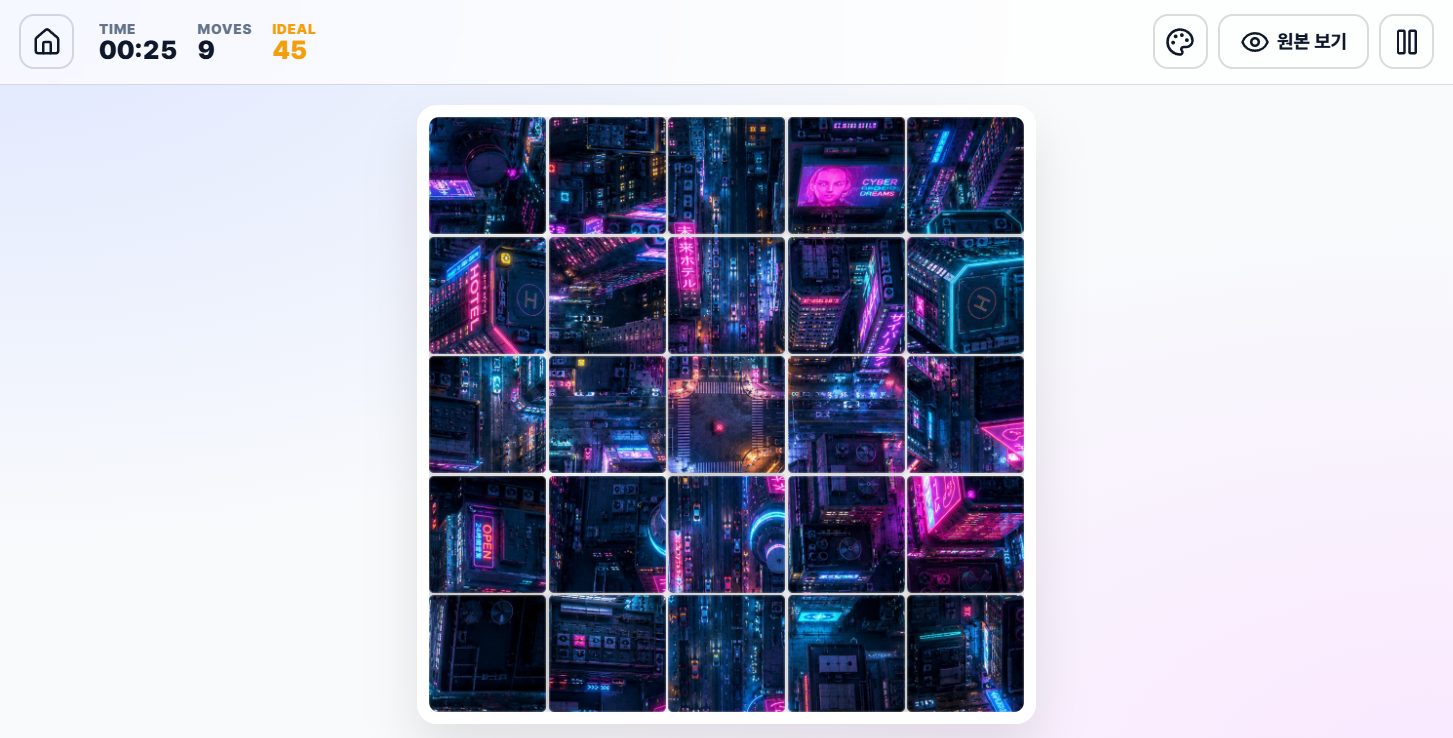
Rotate each piece in place to complete the photo.
Keep the original image in mind as you work out the correct orientation.
Choosing a difficulty
Choose a grid from 3×3 to 8×8.
| Difficulty | Pieces / grid | Recommended for |
|---|---|---|
| 🟢 Beginner | 3×3 | Your first game |
| 🔵 Classic | 4×4 ~ 5x5 | The recommended starting point |
| 🔴 Hard | 6×6 | Once you know the game |
| 🔥 Master | 8×8 | The toughest challenge |
📱 For comfortable touch controls on mobile, a 5×5 grid or smaller is recommended.
How to play
Click or tap a piece to rotate it by 90 degrees.
- Check the orientation of each piece.
- Look at the shapes in the photo and where neighboring pieces connect.
- Rotate each piece as many times as needed.
- The photo is complete when every piece faces the right way.
🎯 Aim for an IDEAL result
You achieve an IDEAL result by finishing with the minimum number of rotations, without any unnecessary turns.
Your scorecard then displays Perfect.
Try to earn Perfect while also reducing your completion time.
At higher difficulties, pay close attention to how neighboring pieces connect.
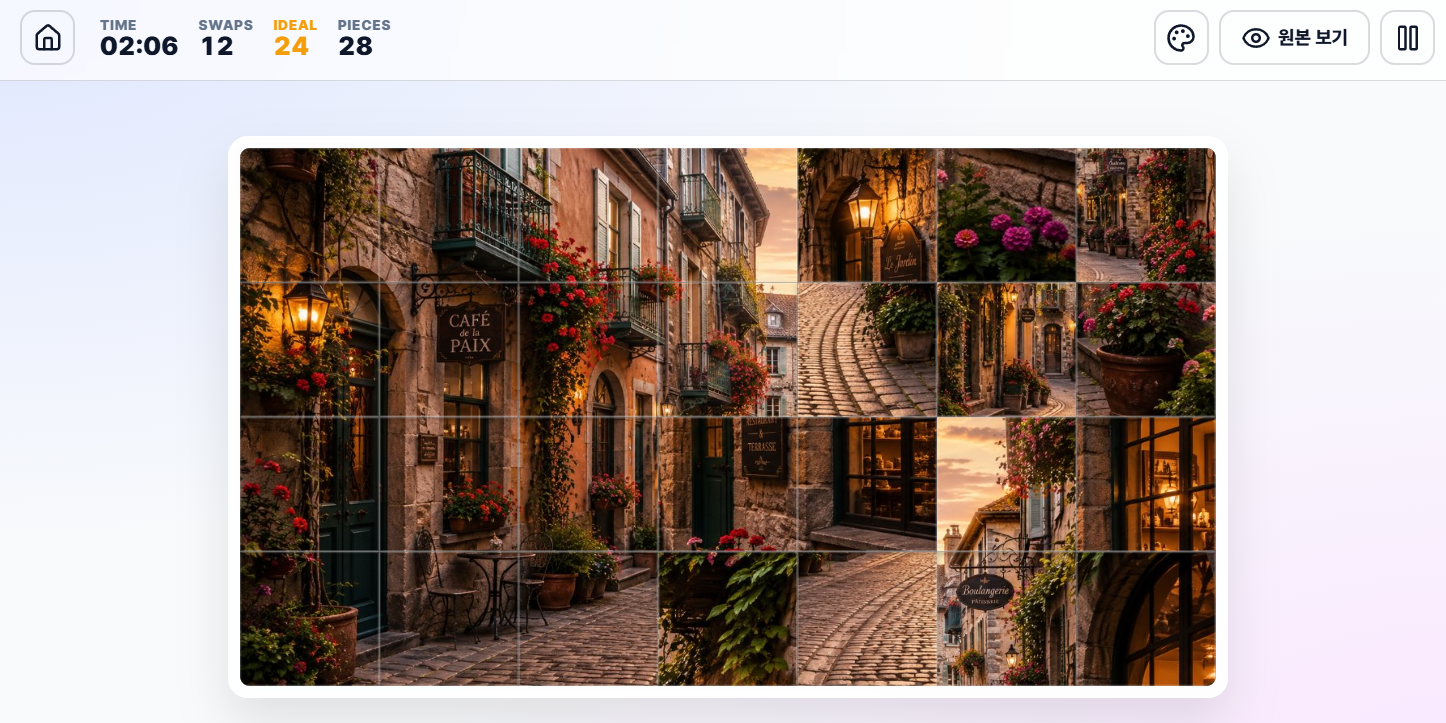
🔀 PUZZLE 04. Swap
Restore the photo by swapping the positions of two pieces.
Keep the original image in mind to work out where each piece belongs.
Choosing a difficulty
Choose from 9 to 100 pieces.
| Difficulty | Pieces / grid | Recommended for |
|---|---|---|
| 🟢 Beginner | 9 pieces | Your first game |
| 🔵 Classic | 16–25 pieces | The recommended starting point |
| 🔴 Hard | 36–64 pieces | Once you know the game |
| 🔥 Master | 100 pieces | The toughest challenge |
📱 For comfortable touch controls on mobile, 25 pieces or fewer is recommended.
How to play
Click or tap two pieces in succession to swap their positions.
- Check the current positions of the pieces.
- Choose the two pieces you want to swap.
- Swap their positions.
- The photo is complete when every piece is in its correct position.
🎯 Aim for an IDEAL result
You achieve an IDEAL result by finishing with the minimum number of swaps, without unnecessary exchanges.
Your scorecard then displays Perfect.
Try to earn Perfect while also reducing your completion time.
At higher difficulties, identifying the exact position of each piece becomes more important.
💡 Useful features while you play
👀 Preview the original photo
Use Preview whenever you want to check what the finished photo should look like.
🖥️ Computer: hold theSpacekey to preview the original photo.📱 Mobile: tap the preview button to show the photo; tap it again to hide it.
🎯 Aim for an IDEAL result
In Rotate and Swap, you can aim for an IDEAL result by using the minimum number of moves.
- 🔄 Rotate → minimum number of rotations
- 🔀 Swap → minimum number of swaps
An IDEAL result earns the Perfect label on your scorecard.
🏆 Save and share your results
After completing a puzzle, you can save your result as an image and share it.
- 🧩 Jigsaw → save the completed photo with its puzzle-piece shapes.
- ↔️🔄🔀 The other three puzzles → choose one of three scorecard designs to save and share your record.
🖼️ Start right away with sample photos
No photo ready? Each puzzle has three different sample images to choose from.
Choose a sample and start playing, or upload a favorite photo to make your own puzzle.
🔒 How are your photos handled?
Photos used in Pixoas Photo Puzzle are processed on your device, inside your browser.
Your uploaded photos are not sent to an external server or stored in a separate server or database, so you can make puzzles from your own photos without uploading them to a remote service.
🔐 Photos stay on your device; they are not sent to an external server to create the puzzle.
✨ Turn a favorite photo into a puzzle with Pixoas Photo Puzzle.
Your own photo puzzle game | Pixoas Photo Puzzle
#PixoasPhotoPuzzle feature summary
#PhotoPuzzle #MakeAPhotoPuzzle #JigsawPuzzle #SlidingPuzzle #RotatePuzzle #SwapPuzzle #CustomPuzzle #PuzzleGame #PhotoGame #SampleImages #IDEAL #Perfect #Scorecard #SaveResults #SavePuzzlePhoto #SharePhotos #FreePuzzleGame #Pixoas #PhotoPuzzle #JigsawPuzzle #Jigsaw #SlidingPuzzle #RotatePuzzle #SwapPuzzle