

JPG vs. PNG vs. WebP: which image format should you use?
Screenshots show the original interface and may contain Korean text.
Start with JPG for photos you need to share or submit, PNG for transparent logos and crisp graphics, and WebP for smaller images on the web. See actual file sizes from a controlled example and compare your own files with ImagePrep.
JPG for photos and submissions
JPG uses lossy compression: it makes files smaller by discarding some image information. Heavy compression can blur text edges or leave patches in areas of similar color. JPG cannot store transparency, so choose a background color before exporting a transparent image as JPG.
PNG for transparency and sharp details
PNG compresses the stored pixels without losing information. It suits screenshots with fine text and lines, and logos that need a transparent background. Photos can be large as PNG files, so export a sample and compare sizes if that matters.
WebP when web images need to be smaller
WebP supports lossy and lossless compression as well as transparency. Export at the same dimensions when comparing size and edge quality. If your destination does not accept WebP, use JPG for photos or PNG for graphics that need transparency.
A comparison with the same artwork
We exported two 1,200 × 800 px test graphics with Chrome Canvas. We passed a quality argument of 0.8 for both JPG and WebP and used the default PNG encoder setting. Equal quality arguments do not imply equal visual quality. These measurements are specific to the samples.
The gradient-background graphic measured 21,570 bytes as JPG, 770,677 bytes as PNG and 7,378 bytes as WebP. With a transparent background, the same artwork measured 15,024 bytes as JPG, 22,220 bytes as PNG and 3,762 bytes as WebP. PNG and WebP retained the transparent corner pixel. The JPG was composited onto white before encoding.
Pick a format for the job
JPG is a practical choice when a photo needs to open in different apps or the destination accepts JPG. Try PNG first for transparent logos, screenshots with small text, or graphics whose pixels you need to preserve. For images on a website, try WebP and check that the destination accepts it.
Compare and batch-convert in ImagePrep
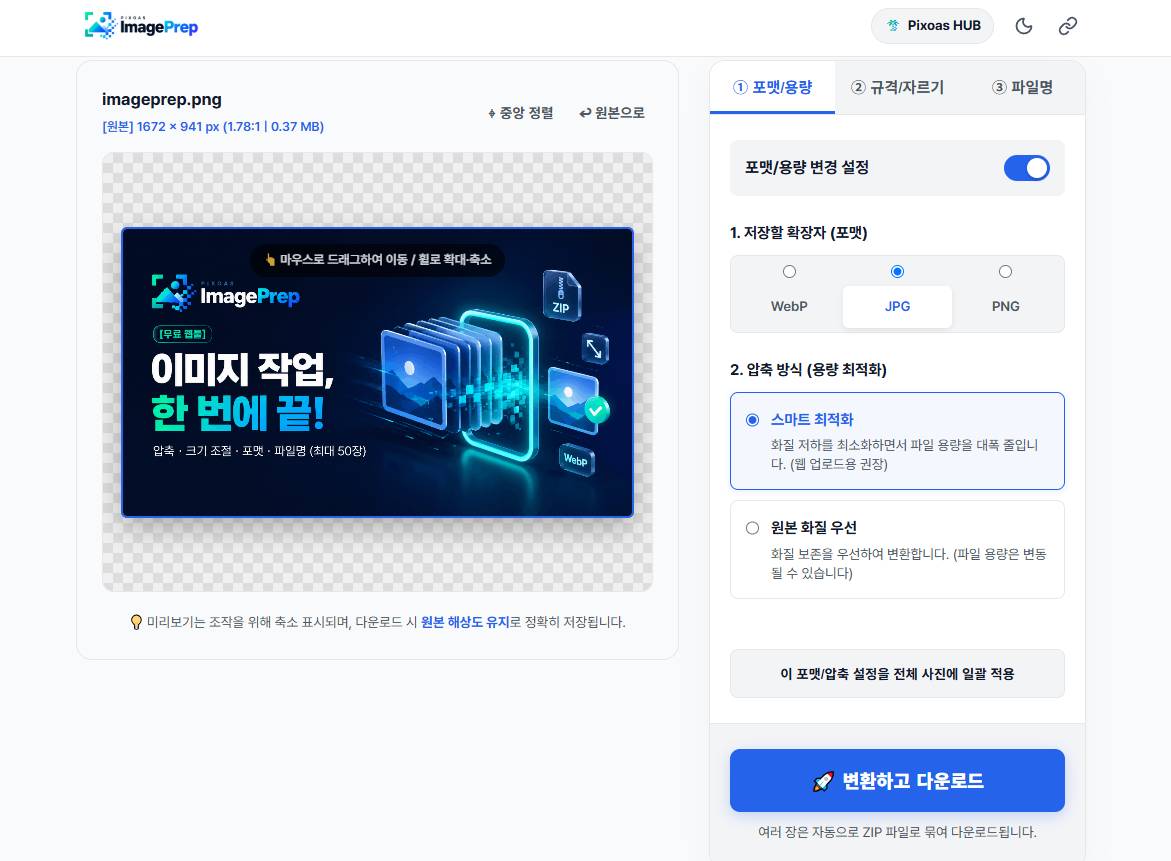
- Keep your originals and load one or two representative images. Use identical output dimensions for each comparison.
- Export the formats your destination accepts. Compare the file sizes and open the images to inspect small text, edges, gradients and transparency.
- Apply the chosen settings to the batch. Adjust individual exceptions, such as transparent logos, and save the results individually or as a ZIP.
Learn how batch and individual settings work
Does renaming the extension convert an image?
Renaming changes the filename. To convert the image, export it from an editor or converter in the destination format. Exporting a previously compressed JPG as PNG cannot recover details lost in the JPG.